Invite your team
Invite teammates by email, or let anyone at your Google Workspace domain join, and give them roles.
Each person you add gets a role that decides what they can see and change. See members for what each role allows.
Invite people by email
Open Members
Open Settings, then Members under Organization.
Start an invitation
Choose Invite.Enter their email and role
Enter their Email and choose a Role: Member or Admin.
Send it
Choose Send invitation.Tell them to sign in
Continual does not email them. Ask them to sign in to Continual with Google, using the address you invited.
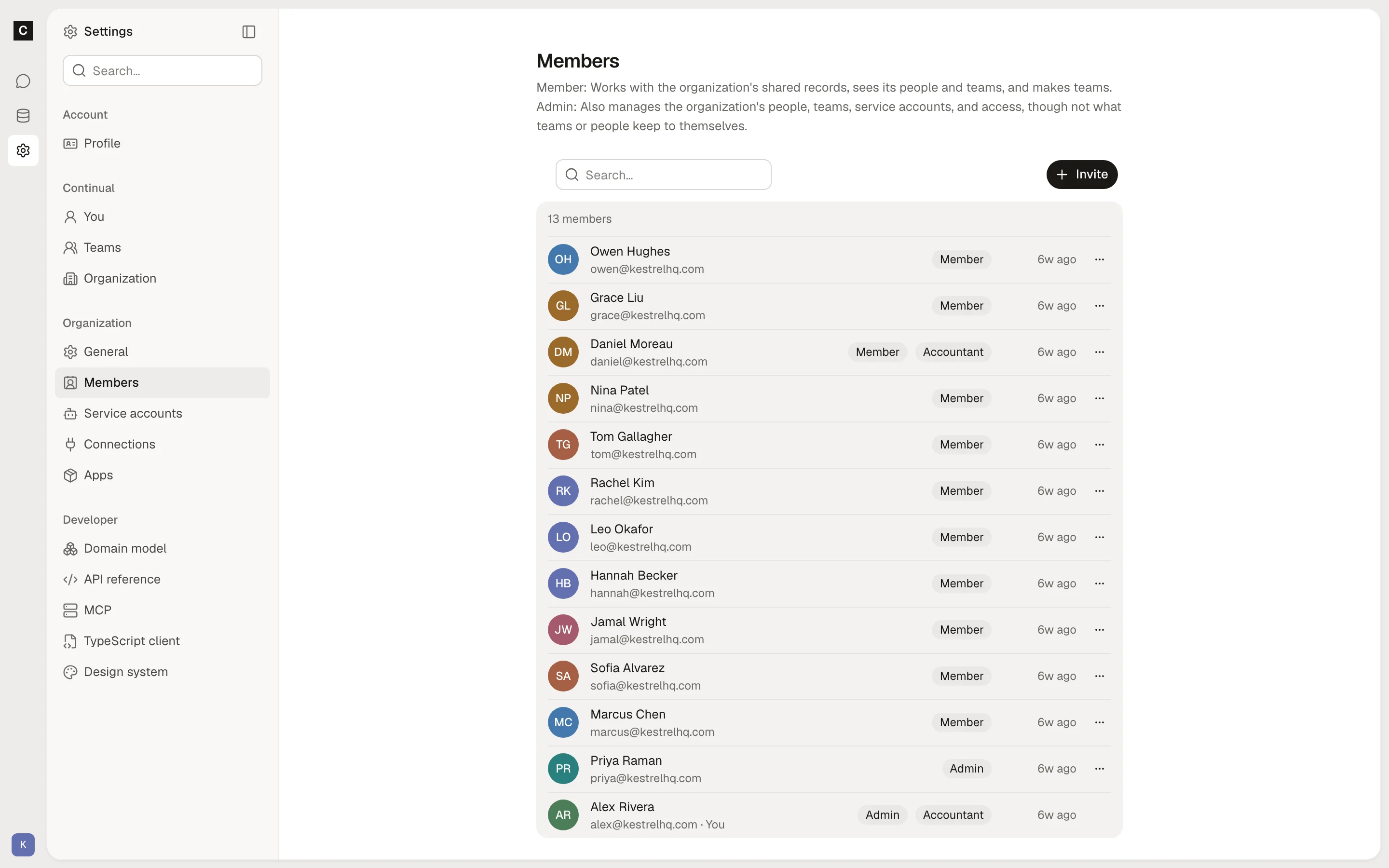
Until they sign in, they show as Invited. When they sign in, they join, and your organization shows under Your organizations.
Let your domain join
If your company uses Google Workspace, colleagues can join without an invitation.
Claim your domain
In Settings › Members, under Google Workspace domain, choose Claim domain. Continual claims the Workspace domain you signed in with. A domain belongs to only one organization.
Open it
Turn on the switch next to your domain. It then says "Anyone at this domain may join."
Colleagues at the domain see your organization under Open to your domain when they sign in, and choose Join. Signing in never adds them on its own. They join as members.
Change someone's role
On the member's row, open the menu and choose a role. Under Apps, you can also give roles that apps add, such as Finance's Accountant. The same menu has Suspend, Reactivate, and Remove.
An organization always keeps at least one active admin, so a change that would leave none is refused.